Pages

Showing posts with label Password Protect excel sheet. Show all posts

Wednesday, November 21, 2012

Password Protect Excel File

There are two reasons you want to password protect your excel file. Either you do not want other people to see sensitive data in you excel file without your permission or you want to restrict user from modifying your excel file. It can easily be achieved using Microsoft Excel only without using any third party password protection software. In this tutorial I am going to show you how you can password protect your excel file with excel only.

Password Protection Options

Excel files can be password protected using Microsoft excel in two ways.
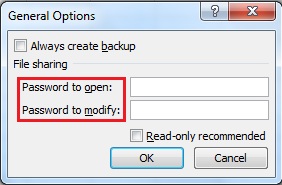
  1. Password to Open: When you want to prevent the users from seeing the data in your excel file then use this protection. User will need a password to view the contents of the file.
  2. Password to Modify: You want to allow your users to see the data but want to restrict them from making any changes in your excel file, then this is the best option.

How to Password Protect Excel File

Open the file you want to protect and follow these simple steps to password protect you excel files.

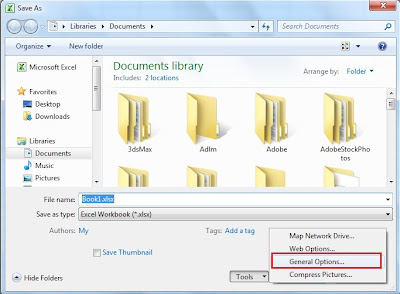
  1. Go to File menu and click on "Save As". A pop-up window for saving you document will appear on you screen.
  2. Click on the "Tools" button on the bottom right hand corner and select "General option..". See image below.
  3. Enter a password to protect your document and then click "OK". (See Image below).
Save As

General Options..


Tuesday, December 13, 2011

Excel 2007 Password Protection


Many of my friends were asking me, how they can password protect their excel 2007 sheets. So, this time I am going to show you, how to password protect your excel files without any software.

Scenario I : Data in Single Excel Sheet
You have important data in an excel file and you do not want others to make changes in sheet. They are allowed to make changes in your sheet only when they have password. Follow these instructions.

  1.  Right click on Sheet1 tab at the bottom left corner of excel.
  2.  Click on "protect sheet".
  3.  Un-check all the text boxes (See Picture). If you un-check all the check boxes, then others can only view your excel sheet. But they cannot make any changes without a password. 
  4.  Enter your password and click OK
  5. Confirm password by typing again in pop up and then click OK.


Your worksheet is now protected. You and others can make changes in the worksheet only after typing in the password to unprotect it. To unprotect it
  1. Right click on the sheet.
  2. Click "Unprotect Sheet".
  3. Type in your password in text box and click OK.
Scenario II : Data in Multiple Excel Sheet
If you have multiple sheets, then choose the sheet you want to password protect. Then follow the instruction given above for data in single excel sheet.


HostGator Promos